Support Tickets
| Ticket | Customer | Order | Issue | Complaint | Status | Waiting |
|---|
Help & guide
Yahan dashboard ki har cheez simple bhasha me samjhayi gayi hai. Kuch dhundna ho to neeche search karo, ya topic par click karke kholo. Screenshot par laal numbers ka matlab screenshot ke neeche likha hai. Screenshot par click karoge to wo bada khulega.
Roz ka kaam (5 step me)
- Dashboard kholo aur login karo. New requests (sidebar me sabse upar) kholo. Jitni bhi laal count hai wo sab ticket aapke jawab ka wait kar rahi hain.
- Sabse upar wali ticket sabse purani hoti hai (customer sabse zyada der se wait kar raha hai). Usse shuru karo. Waiting wala laal chip matlab 24 ghante se zyada ho gaye.
- Ticket kholo, complaint aur order ki detail padho, phir Template chuno ya khud message likho aur Save & notify customer dabao.
- Kaam khatam ho jaye to Mark resolved dabao. Customer ko email jayegi ki "kya problem solve ho gayi?". Wo confirm karega to ticket Closed ho jayegi.
- Din ke end me New requests dobara dekho. Count 0 hona chahiye. Customer ke jawab ke liye aapko kuch aur nahi karna, popup apne aap aa jayega.
Dashboard ka tour: screen par kya kya hai
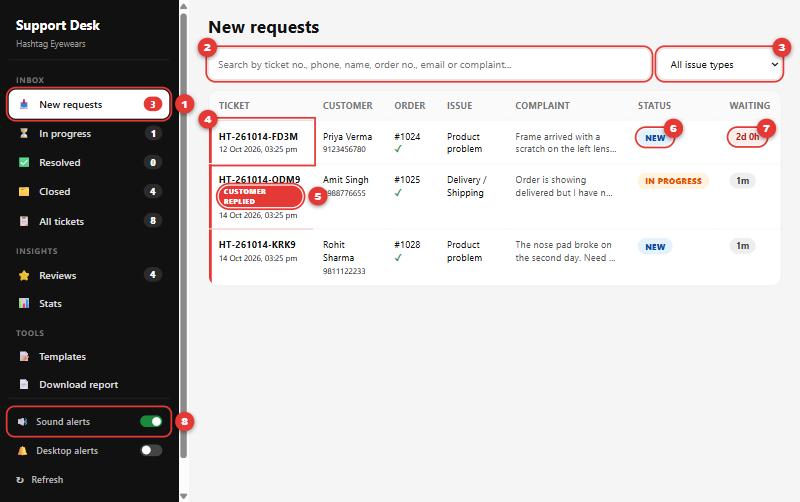
- Sidebar menu. Yahan se har page khulta hai: New requests, In progress, Resolved, Closed, All tickets, Reviews, Stats, Templates, Download report, Help. Har naam ke saath ek number hota hai (kitni tickets). New requests ka number laal hota hai, matlab aapke action ki zaroorat.
- Search box. Yahan ticket number, customer ka naam, phone, order number, email ya complaint ka koi bhi shabd likho. Ticket turant mil jayegi.
- Issue type filter. Sirf ek tarah ki tickets dekhne ke liye (jaise sirf Delivery).
- Ticket ki row. Ticket number, kab bani, customer, order, issue, complaint, status. Row par click karo to puri ticket khulti hai. Row ke left me laal line ka matlab customer jawab ka wait kar raha hai.
- "Customer replied" badge. Customer ne apni taraf se naya message likha hai. Isse pehle dekho.
- Status chip. Ticket abhi kis stage me hai (New, In progress, Resolved, Closed, Reopened). Matlab neeche "Status ka matlab" me hai.
- Waiting chip. Customer kitni der se wait kar raha hai. Laal ho gaya matlab 24 ghante se zyada.
- Alerts ke toggles. Sound alerts (awaaz) aur Desktop alerts (computer ka notification) yahan se on/off hote hain. Neeche Refresh aur Log out bhi hai.
Ticket kaise chalta hai (shuru se end tak)
- Customer ticket banata hai (website par Raise a Ticket). Use ticket number milta hai (jaise HT-261014-K7QM) aur email jati hai. Aapko New ticket dikhti hai, popup aata hai aur team email par alert jata hai.
- Aap pehla jawab dete ho. Ticket apne aap In progress ho jati hai. Customer ko email jati hai aur Track page par aapka message dikhta hai.
- Problem solve hone par aap Mark resolved dabate ho. Customer ko email jati hai: "kya solve ho gaya?".
- Customer "Yes, close ticket" dabata hai to ticket Closed. Phir wo 1 se 5 star rating de sakta hai.
Agar customer kuch nahi karta to 3 din baad ek reminder email jati hai, aur 5 din baad ticket apne aap Closed ho jati hai. - Agar problem solve nahi hui to customer "Not resolved, reopen" dabata hai (ya resolved ticket par naya message likhta hai). Ticket Reopened ho jati hai aur wapas New requests me aa jati hai.
Status ka matlab (New, In progress, Resolved, Closed, Reopened)
| Status | Matlab | Customer ko kya dikhta hai |
|---|---|---|
| New | Nayi ticket, abhi tak kisi ne jawab nahi diya. | "Received" |
| In progress | Aap us par kaam kar rahe ho. Pehla jawab dete hi ticket yahan aa jati hai. | "In progress" |
| Resolved | Aapne bol diya ki problem solve ho gayi. Customer ke confirm karne ka wait hai. | "Resolved" + "Yes, close / Not resolved" buttons |
| Closed | Kaam khatam. Customer ne confirm kiya, ya 5 din me koi jawab nahi aaya, ya aapne band ki. | "Closed" + rating |
| Reopened | Customer ne bola problem abhi bhi hai. Dobara aapke action ki zaroorat. | "Reopened" |
Ticket kholna aur customer ki details dekhna
Kisi bhi row par click karo. Right side se ek panel khulta hai. Band karne ke liye × dabao ya panel ke bahar click karo.
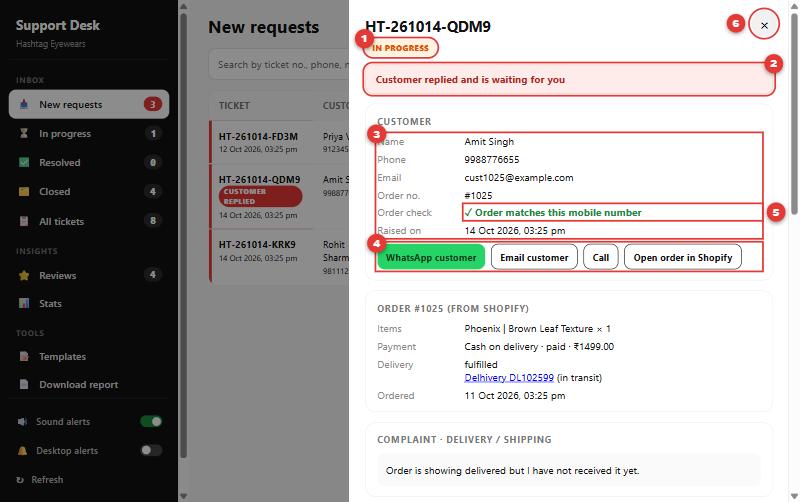
- Status. Ticket abhi kis stage me hai. Agar customer ne rating di hai to yahin ★ dikhte hain, aur "Reopened 2x" jaisa tag dikhta hai agar ticket pehle reopen hui hai.
- Laal banner. "New ticket: waiting for your first reply" ya "Customer replied and is waiting for you". Matlab jawab dene ki baari aapki hai.
- Customer ki detail. Naam, phone, email, order number, aur ticket kab bani.
- Contact buttons. WhatsApp customer (customer ki chat khulti hai, message pehle se likha hota hai), Email customer, Call (phone par dial), aur Open order in Shopify (us order ka Shopify page).
- Order check. ✓ Order matches this mobile number matlab system ne Shopify me check kiya ki ye phone usi order ka hai. Agar "Not verified" dikhe to order ki jaanch nahi ho paayi, Shopify me khud dekh lo.
- Band karne ka button.
Agar is number se customer ne pehle bhi tickets banayi hain to yahin "N other tickets from this number" likha aata hai, un par click karke purani ticket dekh sakte ho.
Order ki detail, complaint aur customer ki photo
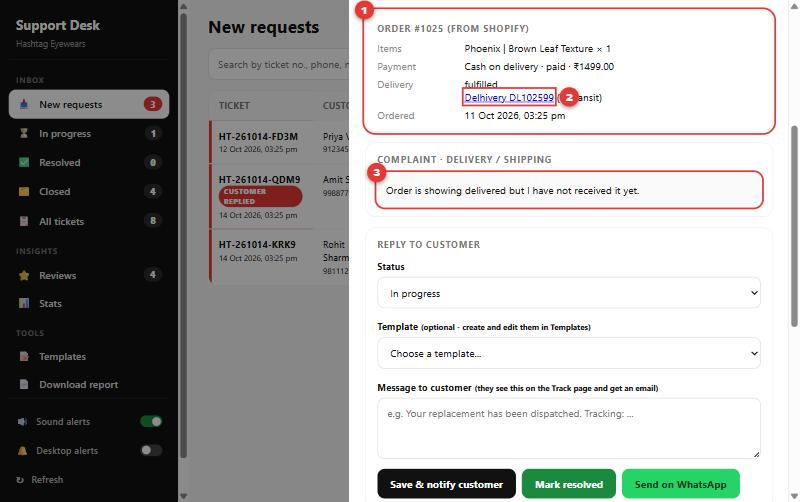
- Order card (Shopify se). Order me kya kya tha, payment COD hai ya prepaid, kitna amount, delivery ki halat, aur order kab kiya. Isse aapko Shopify alag kholna nahi padta.
- Courier tracking. Courier ka naam aur tracking number. Neele link par click karo to courier ki site par live tracking khulti hai.
- Complaint. Customer ne jo likha wahi. Complaint ke neeche customer ki upload ki hui photos chhoti images me dikhti hain (agar di ho). Photo par click karo to badi khulti hai.
Customer ko jawab kaise dein
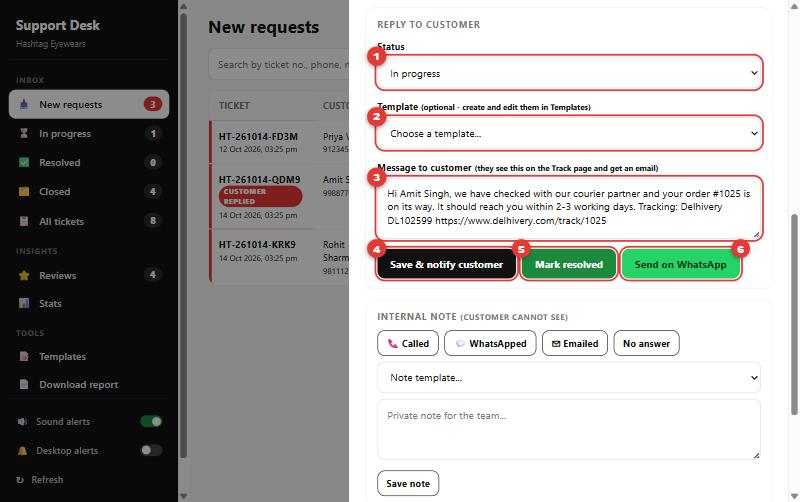
- Status. Jo status chahiye wo chuno. Kuch nahi badalna to waisa hi chhod do. (Pehla jawab dene par New ticket apne aap In progress ho jati hai.)
- Template. Taiyar message chuno (is ticket ke issue type ke templates sabse upar aate hain). Message box me customer ka naam, order number, tracking wagairah apne aap bhar jata hai.
- Message to customer. Jo yahan likhoge wahi customer ko dikhega (Track page par aur email me). Aap template ko badal sakte ho ya khud likh sakte ho.
- Save & notify customer. Status aur message save karta hai aur customer ko email bhejta hai.
- Mark resolved. Ticket ko Resolved kar deta hai. Agar message khali hai to ye default message bhejta hai ("Please confirm...").
- Send on WhatsApp. Jo message likha hai wo customer ki WhatsApp chat me khul jata hai. Aapko bas WhatsApp me Send dabana hai. Ye apne aap send nahi hota aur dashboard me save bhi nahi hota, isliye send karne ke baad internal note me WhatsApped button dabana mat bhoolna.
Internal note aur call/WhatsApp log (customer ko nahi dikhta)
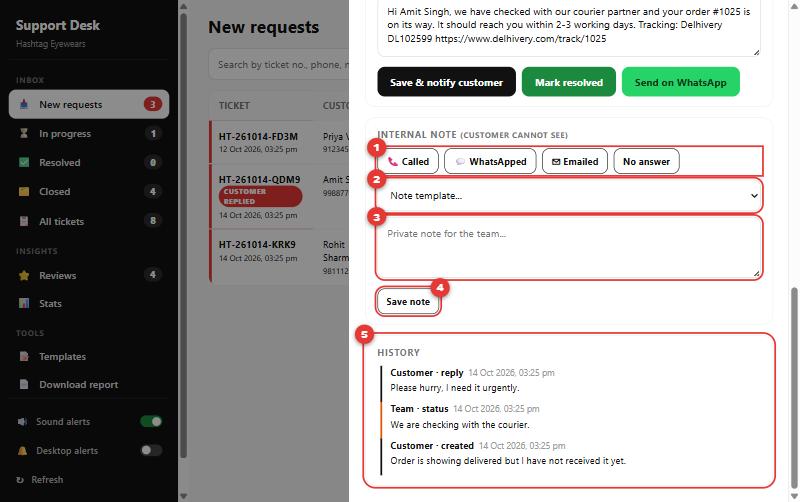
- Quick log buttons. Called, WhatsApped, Emailed, No answer. Customer se phone/WhatsApp/email par baat ki ho to ek click me history me likh do. Box me kuch likha hai to wo bhi saath me judta hai (jaise "Called: kal tak bhejenge").
- Note template. Team ke liye taiyar notes (jaise "Called, no answer").
- Private note. Kuch bhi likho jo sirf team ke liye ho (customer ko kabhi nahi dikhta, na email jati hai).
- Save note.
- History. Is ticket par jo kuch hua: customer ke messages, aapke jawab, status badlav, notes. Naya upar. Halke peele background wali entry internal note hoti hai.
System khud kya karta hai (rules)
- Order number zaroori hai aur wo us mobile number ka hona chahiye jo order me tha. Nahi to ticket nahi banti.
- Ek order par ek ticket. Agar ticket khuli hai to customer ko "pehle wali ticket track karo" dikhta hai. Agar resolved ya closed (7 din ke andar) hai to "usi ko reopen karo".
- 3 baar reopen ke baad customer ko "WhatsApp par contact karo" dikhta hai. Ye limit sirf customer ke liye hai. Aap dashboard se status badal sakte ho.
- Resolved ticket par customer message likhe to ticket apne aap Reopened ho jati hai.
- Aap New ticket par jawab do to wo apne aap In progress ho jati hai.
- Resolved ke 3 din baad customer ko reminder email, 5 din baad ticket apne aap Closed.
- Roz raat 3 baje Google Sheet ki backup copy Drive me banti hai (last 14 rakhi jati hain).
- Customer ki email Shopify order wali email par jati hai (type ki hui email par nahi).
Template kaise banayein, edit karein aur delete karein
Template ek taiyar message hota hai jo aap baar baar use kar sakte ho. Jitne chaho utne bana sakte ho (300 tak). Sab team members ko wahi templates dikhte hain.
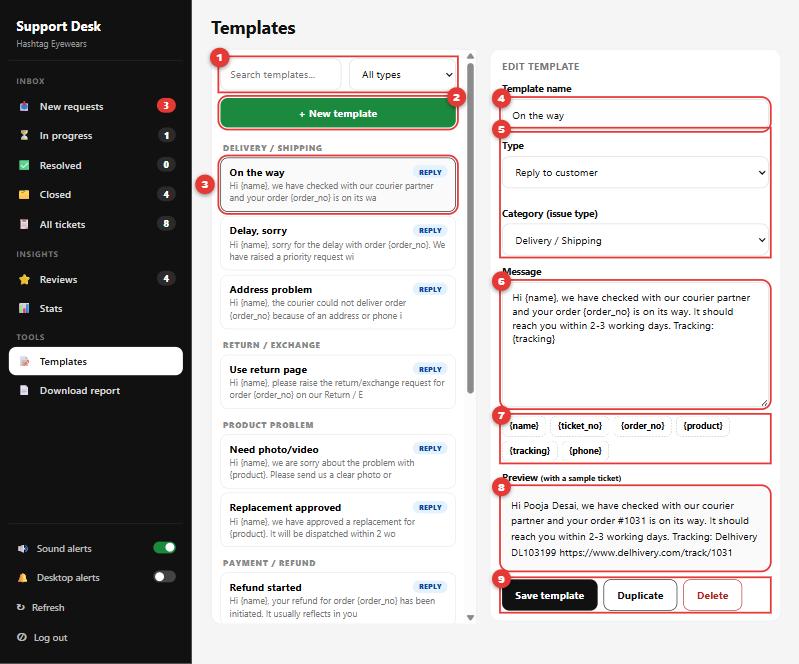
- Search aur type filter. Naam ya message ke shabd se dhundo. Type me "Customer replies" ya "Internal notes" chun sakte ho.
- + New template. Naya template banane ke liye.
- Templates ki list. Category (issue type) ke hisaab se groups me. Kisi par click karo to wo edit ke liye khulta hai. Har template par Reply ya Note likha hota hai.
- Template ka naam. Chhota aur samajhne layak (jaise "Festival delay").
- Type aur Category. Reply to customer = customer ko jane wala message. Internal note = sirf team ke liye. Category me issue type chuno (is issue ki tickets me ye template upar dikhega) ya General (sab me), ya + New category se apni category banao (jaise Warranty).
- Message. Poora message likho.
- Auto-fill buttons. Click karne par message me customer ki detail apne aap bharne wala shabd judta hai:
{name}customer ka naam ·{ticket_no}ticket number ·{order_no}order number ·{product}jis item me problem hai ·{tracking}courier + tracking number + link ·{phone}phone. - Preview. Ek sample ticket ke saath dikhata hai ki customer ko message kaisa dikhega.
- Save template, Duplicate (copy banao aur thoda badlo), Delete (hamesha ke liye hata do).
Naya template banane ke steps
- Sidebar me Templates kholo, + New template dabao.
- Naam likho, Type aur Category chuno.
- Message likho. Customer ka naam wagairah chahiye to neeche ke
{name}jaise buttons dabao. - Preview check karo, phir Save template dabao. "Template saved" likha aayega.
Edit ya delete karna
List me template par click karo, badlav karo, Save template dabao. Hatana ho to Delete dabao aur pooche to OK karo. Delete wapas nahi hota. Sirf badalna ho to Duplicate se pehle copy bana lo. Saare templates delete kar do to list khali hi rahegi (taiyar templates wapas nahi aate), aur naye banane par shuru ho jati hai.
Ticket me template kaise use karein
- Ticket kholo aur Reply to customer tak scroll karo.
- Template dropdown kholo. Is ticket ke issue type wale templates sabse upar milenge, phir General, phir baaki.
- Template chunte hi message box me bhar jata hai (customer ka naam, order number, tracking ke saath). Zaroorat ho to badlo.
- Save & notify customer dabao (email + Track page), ya Send on WhatsApp dabao.
Internal note ke liye bhi alag Note template dropdown hai (note wale section me).
Screenshot ke liye upar "Customer ko jawab kaise dein" dekho.
Report download karna (date aur type chun ke Excel)
Sidebar me Tools → Download report kholo.
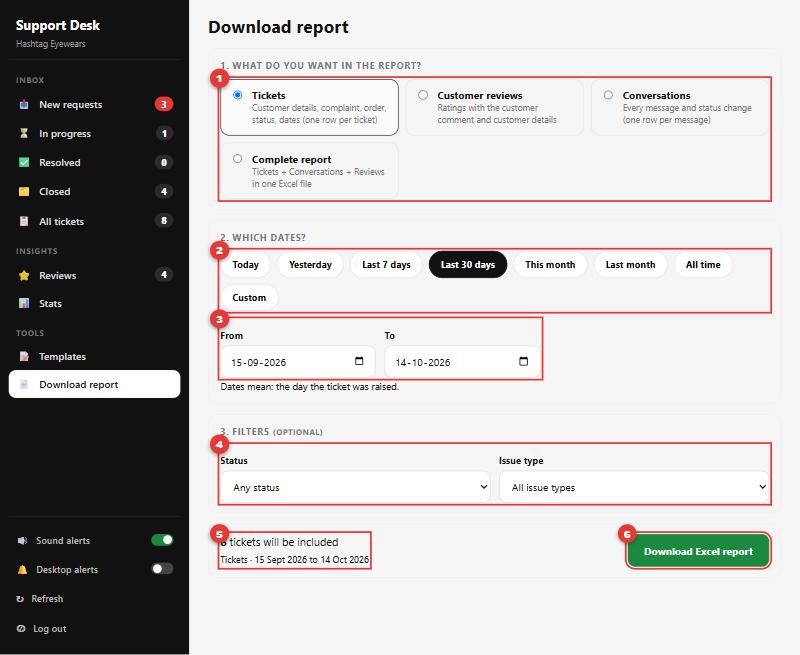
- Report me kya chahiye. Tickets (customer ki detail, complaint, status, dates; ek ticket ek row), Customer reviews (rating + comment + customer ki detail), Conversations (har message aur status badlav ek row me), ya Complete report (teeno ek Excel file me alag sheets me).
- Kaun si dates. Quick buttons: Today, Yesterday, Last 7 days, Last 30 days, This month, Last month, All time. Apni dates ke liye Custom.
- From / To dates. Chuni hui date range yahan dikhti hai. Aap seedha calendar se bhi date chun sakte ho (tab ye apne aap Custom ho jata hai).
Dates ka matlab: Tickets/Conversations me jis din ticket bani. Reviews me jis din customer ne rating di. - Filters (zaroori nahi). Sirf ek status (jaise Closed), sirf ek issue type (jaise Delivery), reviews me sirf low rating. Conversations me team ke internal notes bhi jodne ka option.
- "N tickets will be included". Download se pehle hi dikhta hai ki file me kitni rows aayengi. Agar 0 aaye to button band rehta hai, matlab date ya filter badlo.
- Download Excel report. File computer me download ho jati hai, naam jaisa
HT-Tickets-2026-10-01_to_2026-10-14.xlsx.
Kuch aam examples
- Kal ki sab tickets: Tickets → Yesterday → Download.
- Is mahine ki refund wali complaints: Tickets → This month → Issue type: Payment / Refund → Download.
- Low rating ke customers (call karne ke liye): Customer reviews → Last 30 days → Rating: 3 stars or less → Download.
- Kisi mahine ki puri baat-cheet record: Conversations → Custom dates → Download.
- Sab kuch ek file me: Complete report → All time → Download.
Customer ke reviews dekhna aur download karna
Customer ticket Close hone ke baad 1 se 5 star rating (aur chahe to comment) de sakta hai. Sab yahan milte hain: sidebar me Insights → Reviews.

- Summary. Average rating, kitni ratings mili, aur 5 se 1 star tak kitni-kitni.
- Needs attention. 3 star ya usse kam ki ratings. Pehle inhe dekho aur customer se baat karo. Laal badge me kitni hain wo likha hai. Dusre filters: All, 5 star, 4 star.
- Download these reviews (Excel). Jo filter lagaya hai wahi list Excel me aati hai (customer ki detail ke saath).
- Review ka card. Stars, customer ka comment, naam, phone, order, issue aur ticket number. Low rating ka card halka laal hota hai.
- Open ticket (poori ticket aur history) aur WhatsApp (customer ko "feedback ke liye shukriya" ka message).
Stats (numbers) kaise padhein
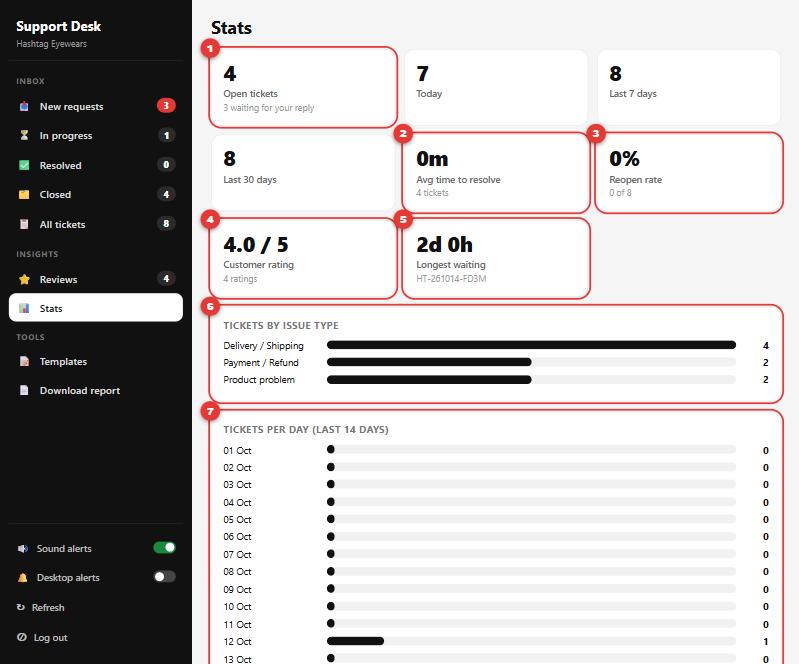
- Open tickets. Abhi kitni tickets band nahi hui, aur unme se kitni aapke jawab ka wait kar rahi hain.
- Avg time to resolve. Ticket banne se resolve hone tak ka average time. Kam jitna behtar.
- Reopen rate. Kitni % tickets dobara reopen hui. Zyada ho to matlab pehli baar me problem poori solve nahi ho rahi.
- Customer rating. Average star rating.
- Longest waiting. Sabse purani ticket jo jawab ka wait kar rahi hai. Pehle isse dekho.
- Tickets by issue type. Kis tarah ki complaints sabse zyada hain.
- Tickets per day. Pichhle 14 din me roz kitni tickets aayi.
Upar ke chhote cards (Today, Last 7 days, Last 30 days) bataate hain ki itne time me kitni nayi tickets aayi.
Popup, awaaz aur desktop alerts kaise kaam karte hain
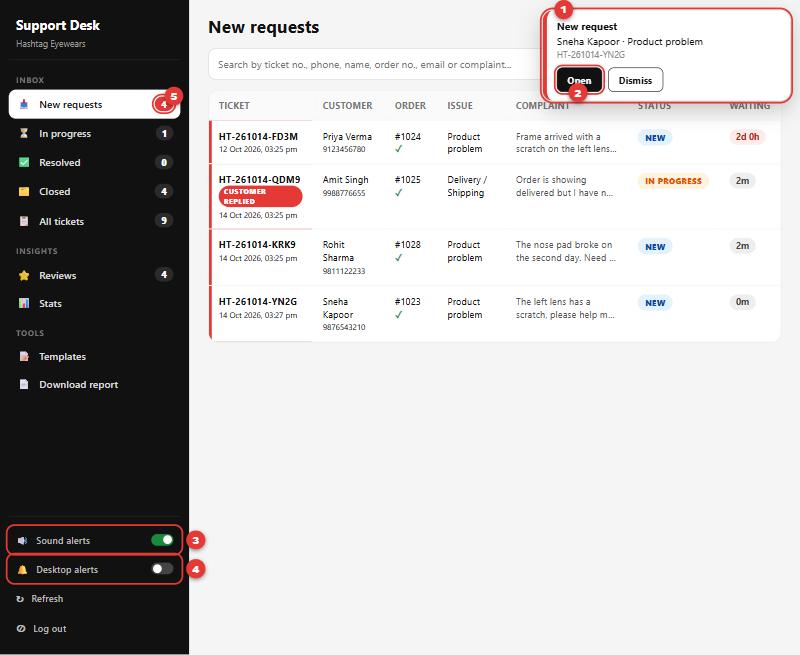
- Popup. Nayi ticket ya customer ka naya message aane par screen ke top-right me aata hai. Kuch der me khud chala jata hai. Dismiss se hata do.
- Open. Seedha wahi ticket khol deta hai.
- Sound alerts. Popup ke saath halki beep. Toggle se on/off. Aapke browser me yaad rehta hai.
- Desktop alerts. Computer ka apna notification (tab dusre tab me ho tab bhi). Pehli baar on karne par browser permission maangega, Allow dabao.
- Red count. New requests ke saath laal number. Browser tab ke naam me bhi "(4)" jaisa dikhta hai, to dusre tab se bhi pata chal jata hai.
Kab kaam karta hai aur kab nahi
- Dashboard browser me khula hona chahiye (kisi bhi tab me chalega, minimize bhi). Band hone par popup nahi aata.
- Page khulne ke baad ek baar page par click kar do, warna browser awaaz block kar deta hai.
- Check har 45 second me hota hai (tab piche ho to 3 minute). To popup 1 minute tak late ho sakta hai.
- Dashboard band ho tab bhi email alert aata hai (new ticket, customer reply, reopen, low rating) support email par.
Snooze: ticket ko baad me yaad dilwana
Jab aap courier ya kisi aur se jawab ka wait kar rahe ho, ticket ko New requests se hata kar baad ke liye rakh sakte ho. Tab list saaf rehti hai aur ticket bhoolti nahi.
- Ticket kholo → Organise → Follow up later. Time chuno: 3 ghante, kal subah 10 baje, 2 din, ya agle Monday. Apna date-time bhi daal sakte ho.
- Ticket Snoozed page me chali jati hai (left menu). Waha uska wapas aane ka time dikhta hai.
- Time aate hi ticket New requests me wapas aati hai, peele Follow-up due nishaan ke saath, aur ek popup aata hai.
- Wake now se kabhi bhi turant wapas la sakte ho.
- Agar customer beech me message kare to ticket turant wapas aa jati hai. Aap kuch miss nahi karoge.
- Customer ko snooze ka kuch pata nahi chalta, ye sirf team ke liye hai.
Reason aur tags (report me kaam aate hain)
- Reason = ye problem hui kyun (jaise Courier delay, Product defect). Ticket resolve karte waqt Reply box me Reason chun lo.
- Tags = apne chhote label, jaise vip, damaged. Organise box me likh kar Enter dabao, phir Save tags. Ek ticket par 8 tak.
- Reason aur tags list me, Stats me aur Excel report me dikhte hain. Stats me Why tickets happen chart se pata chalta hai asli dikkat kaha hai.
- Reasons aur tag suggestions ki list Settings me badal sakte ho.
Bulk update: kai tickets ek saath
- List me tickets ke aage wale checkbox dabao (ya upar ka checkbox saari dikhti tickets ke liye). Ek baar me 40 tak.
- Upar kaali bar aati hai: Update selected.
- Wahan status, template/message, internal note, reason, tag, snooze me se jo chaho bharo. Jo box khali hai wo badlega nahi.
- Message me
{name},{order_no},{ticket_no}jaise words har customer ke hisaab se alag bhar jaate hain. - Message likha ho to har customer ko email bhi jata hai. Aakhir me kitne email gaye wo dikhta hai.
Example: 10 tickets same courier delay ki hain → sab select karo → Reason “Courier delay”, tag “courier-issue”, template se ek message → Apply.
Filters aur saved views
- Search ke paas Filters button: status, rating, reason, tag, date, aur order verify nahi hua, reopen hui, photo hai, follow-up due jaise tick-boxes.
- Button par laga number batata hai kitne filters lage hain. Clear filters se sab hat jata hai.
- Save this view: jo filter aap roz lagate ho use naam de kar save karo (jaise “Delivery - jawab pending”). Baad me ek click me wahi list.
- Saved views poori team ke liye same rehte hain (Settings wale Sheet me save hote hain). 12 tak.
Settings page: rules aur lists badalna
Tools → Settings me Google Script khole bina ye badal sakte ho. Badalne ke baad Save settings dabao. Poori team ke liye lagu hota hai.
- Ticket rules: Resolved ticket kitne din baad khud band ho, band hone se kitne din pehle customer ko yaad dilana, reopen ke din aur max baar.
- Waiting chip: kitne ghante baad laal “late” chip dikhe.
- Team email aur customers ko dikhne wala support contact.
- Reasons / tags ki list (ek line me ek).
- Phone alerts (neeche alag topic me).
Dashboard ka login (email/password) yaha se nahi badalta, wo Script Properties me hi rehta hai, safety ke liye.
Phone par free instant alert (Telegram ya Google Chat)
Naya ticket, customer reply, reopen ya kam rating aane par aapke phone par turant message aata hai, dashboard band ho tab bhi. Bilkul free. Message me phone number nahi hota, sirf naam, issue, order aur dashboard ka link.
Telegram (aasan)
- Telegram me @BotFather khole →
/newbot→ naam do. Wo ek token dega. - Ek Telegram group banao, team ko add karo, aur apne bot ko bhi add karo.
- Group me koi bhi message bhejo. Phir @RawDataBot ya @getidsbot ko group me add karke group ka chat id dekho (minus ke saath, jaise -100123...).
- Settings me token aur chat id daalo → Save settings → Send a test alert. Phone par message aana chahiye.
Google Chat
- Google Chat me ek Space banao → Space ke naam par click → Apps & integrations → Webhooks → naya webhook.
- Wo URL Settings me Google Chat webhook URL me daalo, Save, aur Test alert dabao.
Dhyan: token / webhook URL sirf Settings page me daalo, kisi ko chat me mat bhejo. Save hone ke baad wo wapas dikhta nahi (sirf “saved” likha aata hai). Hatana ho to Remove the saved token tick karke save karo.
Customer ko website par kya dikhta hai
1) Ticket banana (Raise a Ticket page)
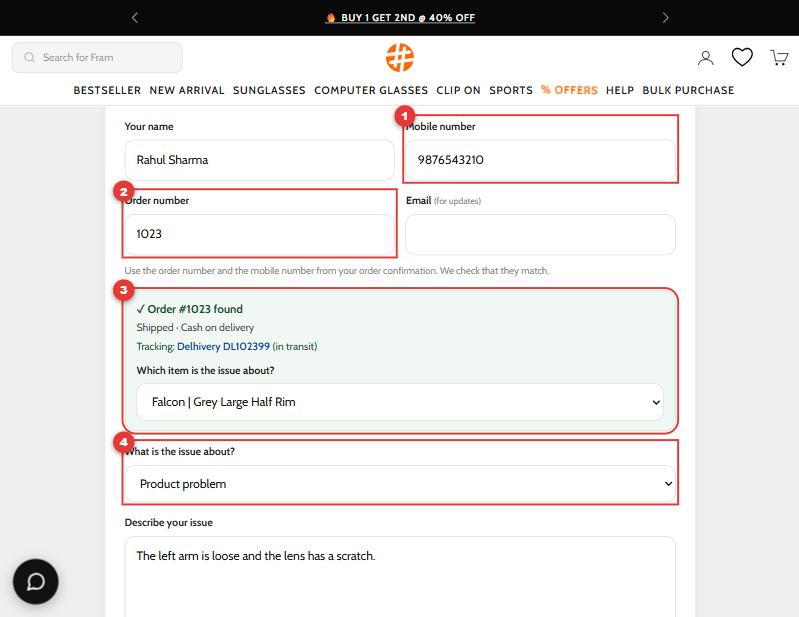
- Mobile number. Wahi jo order me tha.
- Order number. Jaise 1023 ya #1023.
- Order mil gaya wala box. Order aur mobile number match hote hi hara box aata hai jisme order ke items aur courier tracking dikhta hai. Customer yahin se chun leta hai ki kaun sa item kharab hai.
- Issue type. Delivery, Return/Exchange, Product problem, Payment/Refund, Other. (Return/Exchange chunne par unhe Return page ka link bhi dikhta hai.)
Neeche wo complaint likhta hai, chahe to 3 photos daalta hai aur Submit ticket dabata hai. Phir use ticket number milta hai.
2) Ticket track karna (Track Your Ticket page)
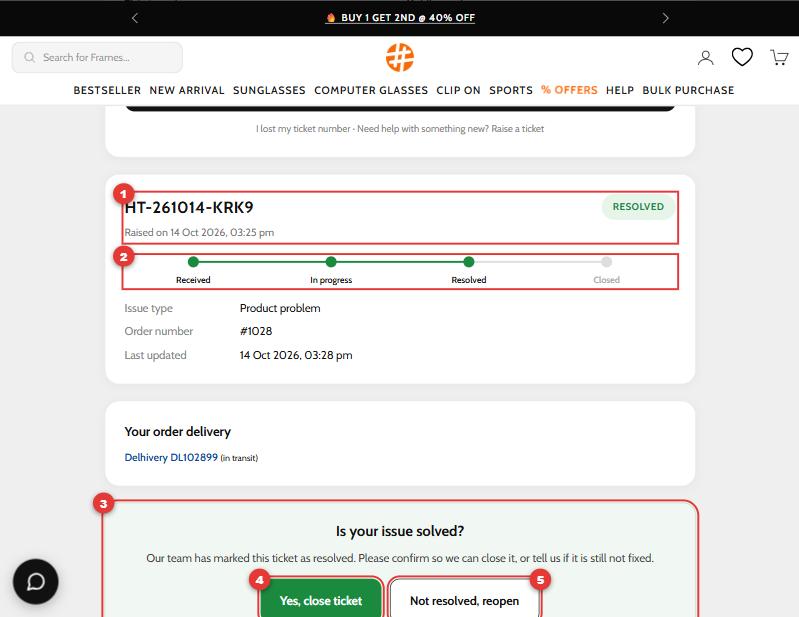
- Ticket number aur status.
- Progress bar. Received → In progress → Resolved → Closed.
- "Is your issue solved?" Resolved hone par ye box aata hai.
- Yes, close ticket. Ticket band, phir star rating ka option.
- Not resolved, reopen. Customer likhta hai kya baaki hai, ticket Reopened hoke aapke paas wapas aati hai.
Customer ko email me bhi Track ticket ka button milta hai. Us par click karne par ticket seedha khul jati hai (phone number dobara nahi daalna padta).
Dashboard me login nahi ho raha
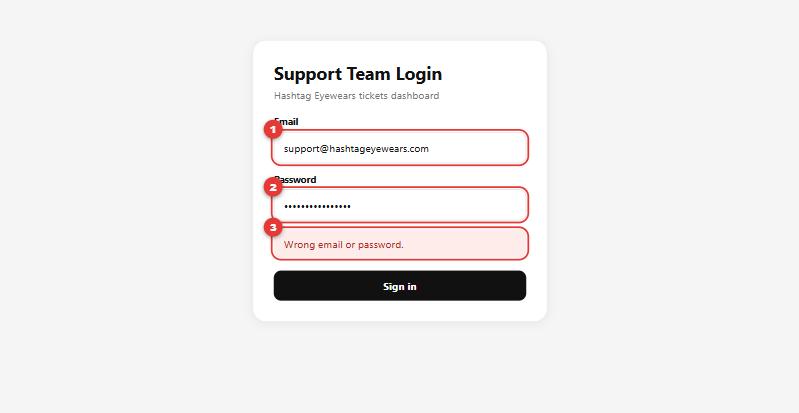
- Email. Wahi email jo dashboard ke liye set hui hai (poori team ka ek hi login hai). Spelling check karo.
- Password. Capital/small letter ka dhyan rakho. Caps Lock on to nahi?
- "Wrong email or password." Email ya password galat hai.
| Message | Kya karna hai |
|---|---|
| "Wrong email or password." | Dobara dhyan se likho. Password bhool gaye to developer se naya set karwao. |
| "Too many wrong attempts. Please try again after 15 minutes." | Bahut baar galat dala. 15 minute ruko, phir sahi password se try karo. Is dauran login band rehta hai. |
| "Session expired. Please sign in again." | Login 12 ghante me apne aap khatam hota hai. Dobara login kar lo. |
| "The dashboard password is not set or is too weak." | Ye team ki galti nahi. Developer ko batao, password settings me set karna padega. |
Popup ya awaaz nahi aa rahi
- Dashboard abhi browser me khula hai na? Band hoga to popup nahi aayega. Email alert phir bhi aayega.
- Sidebar me Sound alerts ka toggle hara (on) hona chahiye.
- Page par ek baar kahin click karo (browser click ke bina awaaz allow nahi karta).
- Computer ki awaaz (volume) aur browser tab mute to nahi?
- Desktop alerts ke liye toggle on karke browser me Allow dabao. Pehle Block kar diya ho to address bar ke left me taale/ghanti ke icon par click karke Notifications ko Allow karo.
- Popup ek-do minute late aa sakta hai (check 45 second me ek baar hota hai). Turant dekhna ho to sidebar me Refresh dabao.
Customer bolta hai: "order number match nahi ho raha, ticket nahi ban rahi"
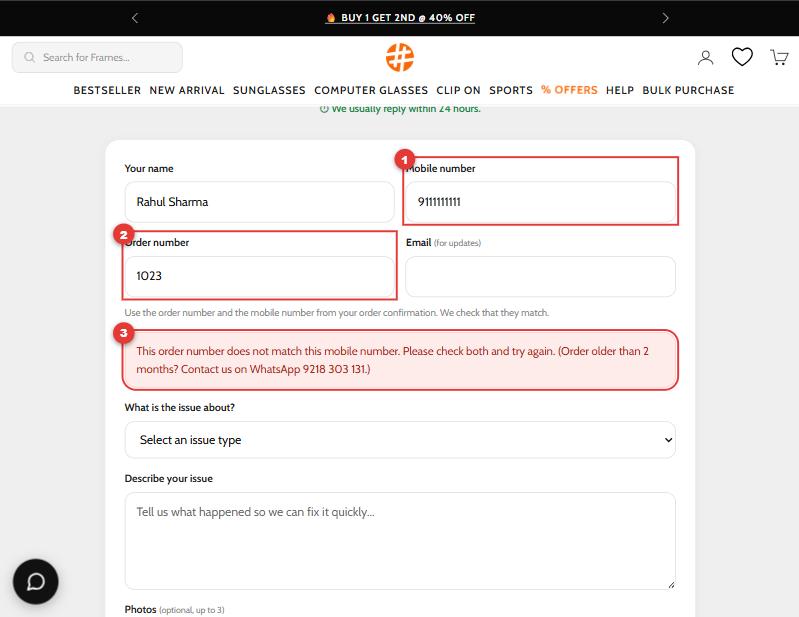
- Mobile number. Customer ne kaun sa number daala.
- Order number. Kaun sa order number daala.
- "does not match this mobile number". System ne Shopify me dekha aur ye order is phone ka nahi mila.
Aam wajah aur hal:
- Order ke time doosra number diya tha (jaise ghar ka, ya kisi aur ka). Customer se poochho kaun sa number order me daala tha, wahi form me daale.
- Order number galat likha. Order confirmation SMS/email me dekh kar sahi number daale (sirf number, jaise 1023).
- Order 2 mahine se purana hai. System Shopify se sirf haal ke orders dekh pata hai. Customer ko WhatsApp par contact karne ko bolo. Aap Shopify me order dekh sakte ho.
- Agar customer ka phone aur order sahi hain phir bhi nahi chal raha, to Shopify me order kholkar us par likha phone check karo. Nahi mile to developer ko order number batao.
Customer bolta hai: "ticket nahi ban rahi, bolta hai pehle hi ticket ban chuki hai"
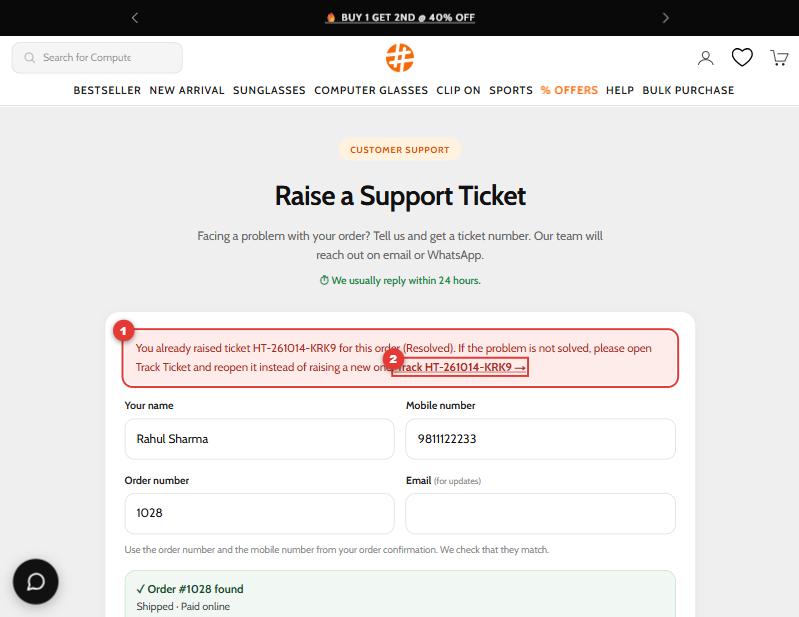
- Laal message. Batata hai ki us order par pehle se kaun si ticket hai aur uska status kya hai.
- "Track HT-... →" link. Customer seedha us purani ticket par ja sakta hai.
| Purani ticket ka status | Customer ko kya dikhta hai | Aap kya karo |
|---|---|---|
| New / In progress / Reopened | "Ticket already open, please track it" | Ticket par jawab do, naya ticket banane ki zaroorat nahi. |
| Resolved ya Closed (7 din ke andar) | "Reopen it instead of raising a new one" | Customer Track page par jaakar Reopen karega. Ya aap dashboard me ticket ka status wapas In progress kar do. |
| 3 baar reopen ho chuki | "Contact us on WhatsApp" | Customer ko WhatsApp par seedha sambhalo. Ticket par aap status badal sakte ho. |
| Closed (7 din se purani) | Nayi ticket ban sakti hai | - |
Customer apna ticket number bhool gaya
- Customer khud: Track Your Ticket page par "I lost my ticket number" link dabaye, apna order number aur mobile number daale. Us order ki tickets ki list dikhegi, kisi par click karke khol sakta hai.
- Aap: dashboard ke All tickets me search box me uska phone number ya order number likho. Ticket number wahin dikh jayega. Customer ko WhatsApp par bhej do.
- Customer ko jo email aayi thi usme Track ticket button hai, wahi sabse aasan hai.
Customer ko email nahi ja rahi / "emails left" ka warning

- Warning banner. Aaj ki email sending limit lagbhag khatam hone wali hai.
- Free email account se din me lagbhag 100 emails hi jaa sakti hain. Har ticket par 2-3 emails lagti hain. Limit khatam hone par customer ko email nahi jayegi. Agle din limit wapas aa jati hai.
- Jis ticket par email nahi gayi uski History me ek internal note aata hai ("Email to customer could not be sent"). Us customer ko WhatsApp par message bhejo (Send on WhatsApp button).
- Customer ke order me email na ho to bhi email nahi jati. Tab bhi WhatsApp use karo.
- Roz zyada tickets aati hon to developer se bolo email account ko business account (jiski limit zyada hai) par le jaye.
Customer ka jawab Track page par hamesha dikhta hai, chahe email na gayi ho.
Excel / report download nahi ho raha
- Report page par "0 tickets will be included" likha hai? Tab button band rehta hai. Dates ya filters badlo (All time try karo).
- From date To date se baad ki to nahi? "The From date is after the To date" aayega. Sahi karo.
- Browser ne download rok diya ho to address bar me "Downloads blocked" ka icon dekho aur Allow karo. File Downloads folder me milti hai.
- "Excel library did not load" aaye to internet check karo aur page Refresh karo.
- Bahut sari tickets ho to file banne me kuch second lagte hain. "Preparing..." likha rahe tab tak ruko, dobara mat dabao.
Dashboard slow hai ya "Could not reach the server" aa raha hai
- Internet chal raha hai? Koi aur website kholkar dekho.
- Sidebar me Refresh dabao. Phir bhi nahi to browser page reload karo (F5).
- 10-15 second ka wait normal hai (data Google Sheet se aata hai). Jab photo wali ticket banti hai tab thoda zyada time lagta hai.
- Agar kuch der baad bhi "Something went wrong on our side" aaye to 1-2 minute ruko, phir dobara try karo. Baar baar button mat dabao, isse aur der lagti hai.
- Phir bhi nahi chale to developer ko batao (kya dabaya, kaun sa message aaya, kitne baje). Backend ek "Errors" sheet me khud error likhta hai.
Customer ki photo nahi dikh rahi
- Photo complaint ke neeche chhoti image me dikhti hai. Click karoge to Google Drive me khulegi.
- Customer ne photo na daali ho to kuch nahi dikhega (photo optional hai, max 3).
- Photo ka link Google Drive ka hai. Aap jis browser me ho usme internet chal raha ho aur ad-blocker photo ko na rok raha ho.
- Photo bahut badi thi to customer ke browser me chhoti karke upload hoti hai. Agar customer ka phone slow ho to upload fail ho sakta hai. Use dobara try karne ko ya WhatsApp par photo bhejne ko bolo.
Galti se galat status ya galat message bhej diya
- Status galat hai: ticket kholo, Status dropdown me sahi status chuno, ek chhota message likho ("Galti se resolved ho gaya tha, kaam jaari hai") aur Save & notify customer dabao. Closed ticket ko bhi wapas In progress kar sakte ho.
- Bheja hua message wapas nahi liya ja sakta. Customer ko sahi jankari ka naya message bhejo ("Pichhle message me galti thi...").
- Sirf apni team ke liye kuch likhna hai to Internal note use karo, usme message customer ko nahi jata.
- Customer ki rating ya message badal/delete nahi hota.
WhatsApp button se chat nahi khul rahi ya message send nahi hua
- Button customer ke phone par WhatsApp chat khol deta hai aur message pehle se likh deta hai. Send aapko khud dabana hai. Apne aap send nahi hota.
- Computer par WhatsApp Web (ya WhatsApp Desktop) login hona chahiye. Phone par WhatsApp wala phone use karo to seedha app khulta hai.
- Browser "popup blocked" bole to Allow karo.
- Customer ka number WhatsApp par na ho to chat nahi khulegi. Tab Call ya Email customer use karo.
- Customer ko WhatsApp bhejne ke baad internal note me WhatsApped dabao, taaki history me dikhe.
Spam ya galat ticket aayi, ya ek hi customer ne kai tickets banayi
- Dashboard se ticket delete nahi hoti (record safe rehta hai). Faltu ticket ko Closed kar do aur Internal note me likho ("Spam / galat ticket").
- Report me ye ticket aayegi. Chaho to report me status filter se Closed alag kar sakte ho.
- Ek hi order par ek hi ticket ban sakti hai, to duplicate tickets apne aap rukti hain. Alag order ki ho to alag hi ticket hai.
- Ek phone se din me 5 se zyada tickets nahi ban sakti.
Developer ko kab aur kya batayein
In cheezon me team khud kuch nahi kar sakti, developer ko batao:
- Login ka password bhool gaye ya "password not set / too weak" aaya.
- Templates sirf ek browser me save ho rahe hain (peela warning).
- Naye ticket par team ko email alert nahi aa raha.
- Roz "Something went wrong on our side" aa raha hai.
- Order ka check ("Order check: Not verified") sab tickets par aa raha hai.
- Email limit roz khatam ho rahi hai.
Batate time ye likh do: ticket number, kya dabaya, screen par kya likha aaya (screenshot best hai), aur kitne baje hua.
Chhote chhote shabdon ka matlab (glossary)
| New requests | Wo sab tickets jinko aapke jawab ki zaroorat hai (New, Reopened, aur jinme customer ne naya message likha hai). |
| Customer replied | Customer ne ticket par naya message likha, aapko jawab dena hai. |
| Waiting | Customer kitni der se jawab ka wait kar raha hai. |
| Order check ✓ | System ne Shopify me confirm kiya ki phone number us order ka hai. |
| Reopened 2x | Ye ticket 2 baar reopen ho chuki hai. |
| Internal note | Sirf team ke liye likha hua, customer ko nahi dikhta. |
| Template | Taiyar message jo aap baar baar use kar sakte ho. |
| Placeholder ({name} jaisa) | Message me aisa shabd jo ticket kholne par customer ki asli detail se badal jata hai. |
| Track page | Website ka wo page jahan customer apni ticket ka status dekhta hai. |
| Auto-closed | Resolved ke 5 din baad customer ne kuch nahi kiya, to ticket apne aap band ho gayi. |
Is shabd se koi topic nahi mila. Doosra shabd try karo (jaise: template, download, popup, login).